StreamMate Download

Run the words of your service on the livestream and the church screen, with one click.

StreamMate keeps the SDA Hymnal, your order of service with every participant's name, the Bible and your presentations in one place, and puts the right words on screen at the right moment: in vMix for the stream, and on the projector in the church.

Download for Windows Download the manual (PDF, 6 MB) NewLatest version · Windows 10 / 11

Free 7-day trial, no sign-up. How licensing works

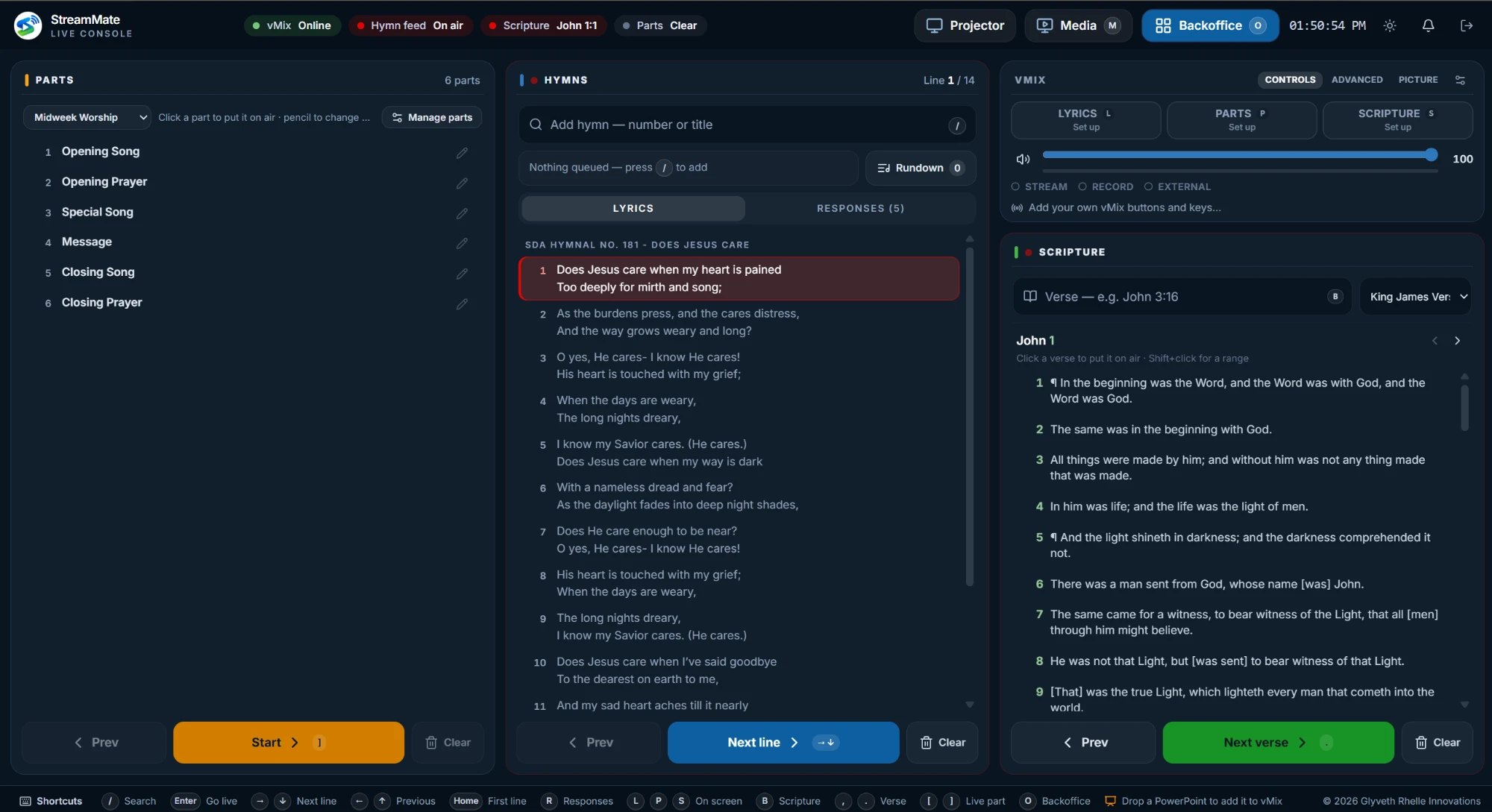
The StreamMate Live console: parts, hymns, the vMix panel and Scripture

Everything the media desk needs for a service

Prepared during the week, run from one screen on Sabbath. Built for churches that stream with vMix.

The SDA Hymnal, built in

All 695 hymns plus your own songs and responses. Queue them, put them on air and step line by line, or with a clicker.

Programs with names

Each service keeps its usual parts. Fill in who is on each part, with suggestions from past weeks, a Google Sheet or your church's member system, and every name goes to vMix as a lower third.

Scripture

Type a reference, click a verse, and it is on air. Next and previous verse with a key.

Projector output

The church screen follows the console: the same hymn line, verse or part as the stream, in your colours, with one text size for the whole song.

Slides and speaker notes

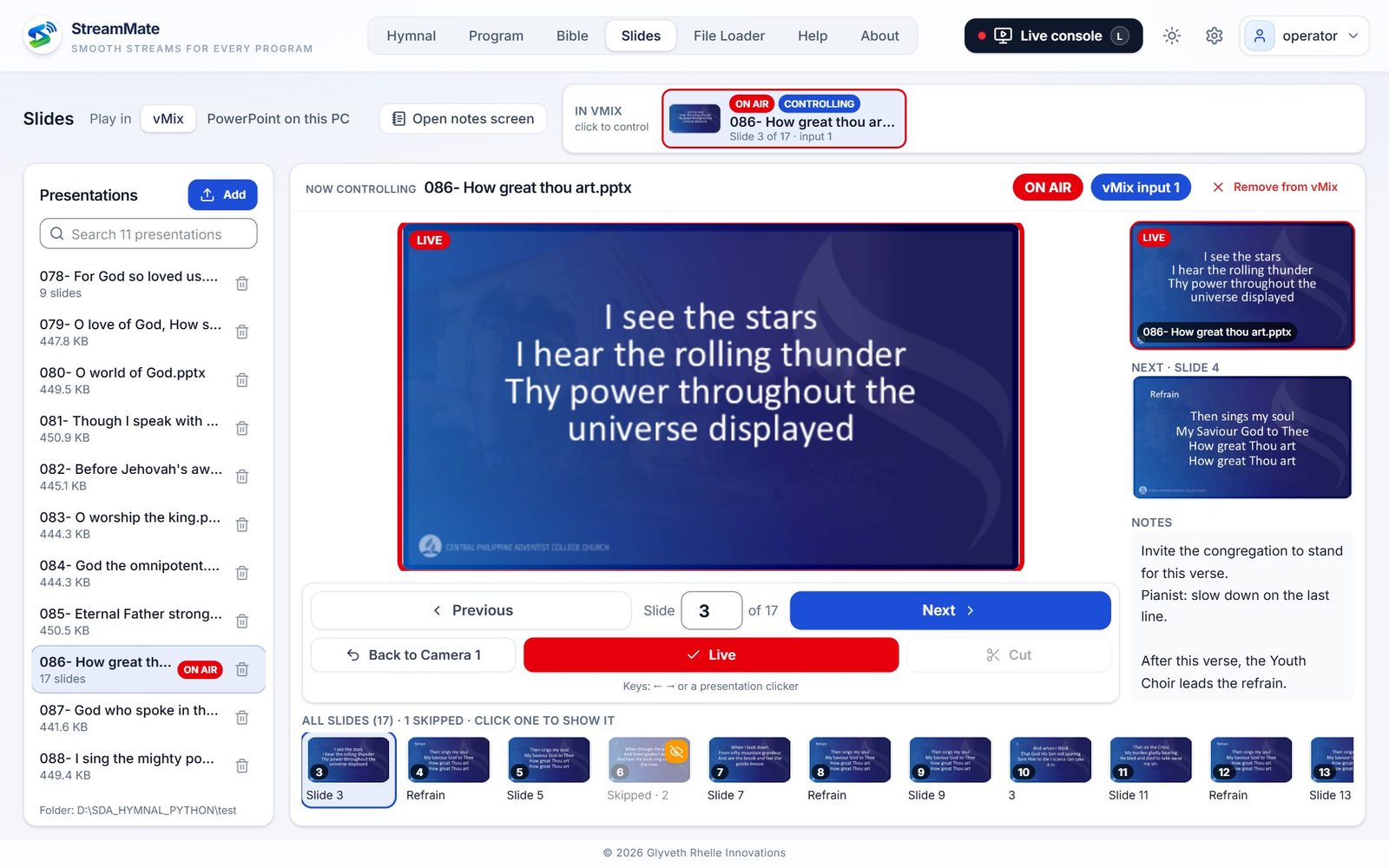
Run PowerPoint in vMix or on a screen, skip slides, and show the speaker's notes full screen at the pulpit.

vMix controls

Show or hide the lyrics, parts and Scripture graphics, the main volume, streaming status and your own vMix buttons, each with a key.

A quick tour

The screenshots use sample names. Click a picture to see it full size.

The Live console

Everything for running the service on one screen: the parts on the left, the hymn in the middle, the vMix panel and Scripture on the right.

  • Keyboard shortcuts for every step, and presentation clickers
  • Late change of participant? A pencil on the part
  • Dark mode for the booth, light mode for a bright room
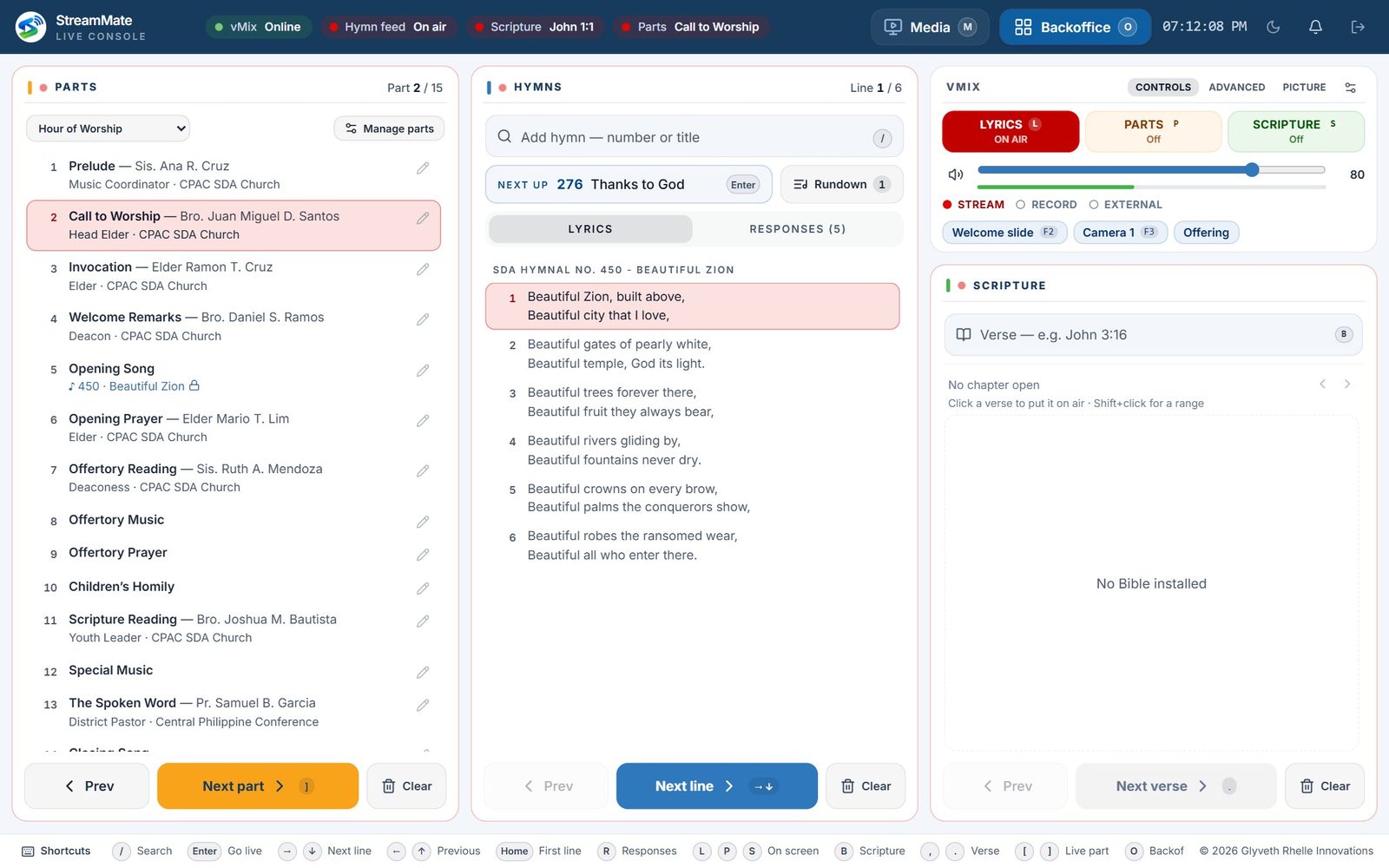
The Live console in light mode

The church screen

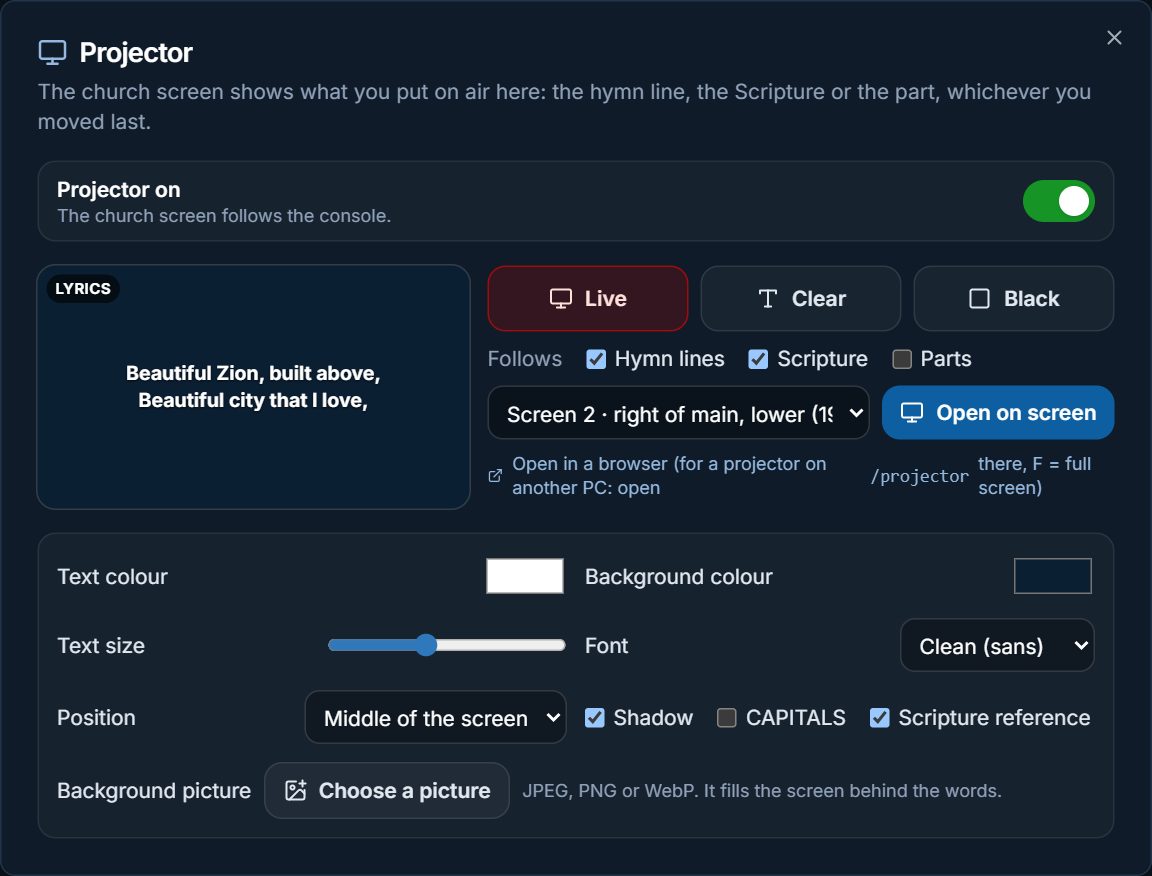
Open the projector output full screen on any screen of the StreamMate PC, or in a browser on another PC. It shows whatever you moved last: the hymn line, the verse or the part.

  • Live, Clear or Black at a click
  • Colours, font, size, a background picture, middle or lower third
  • An on / off switch when you don't need it
The projector output showing a hymn line
The Projector settings

Programs for every service

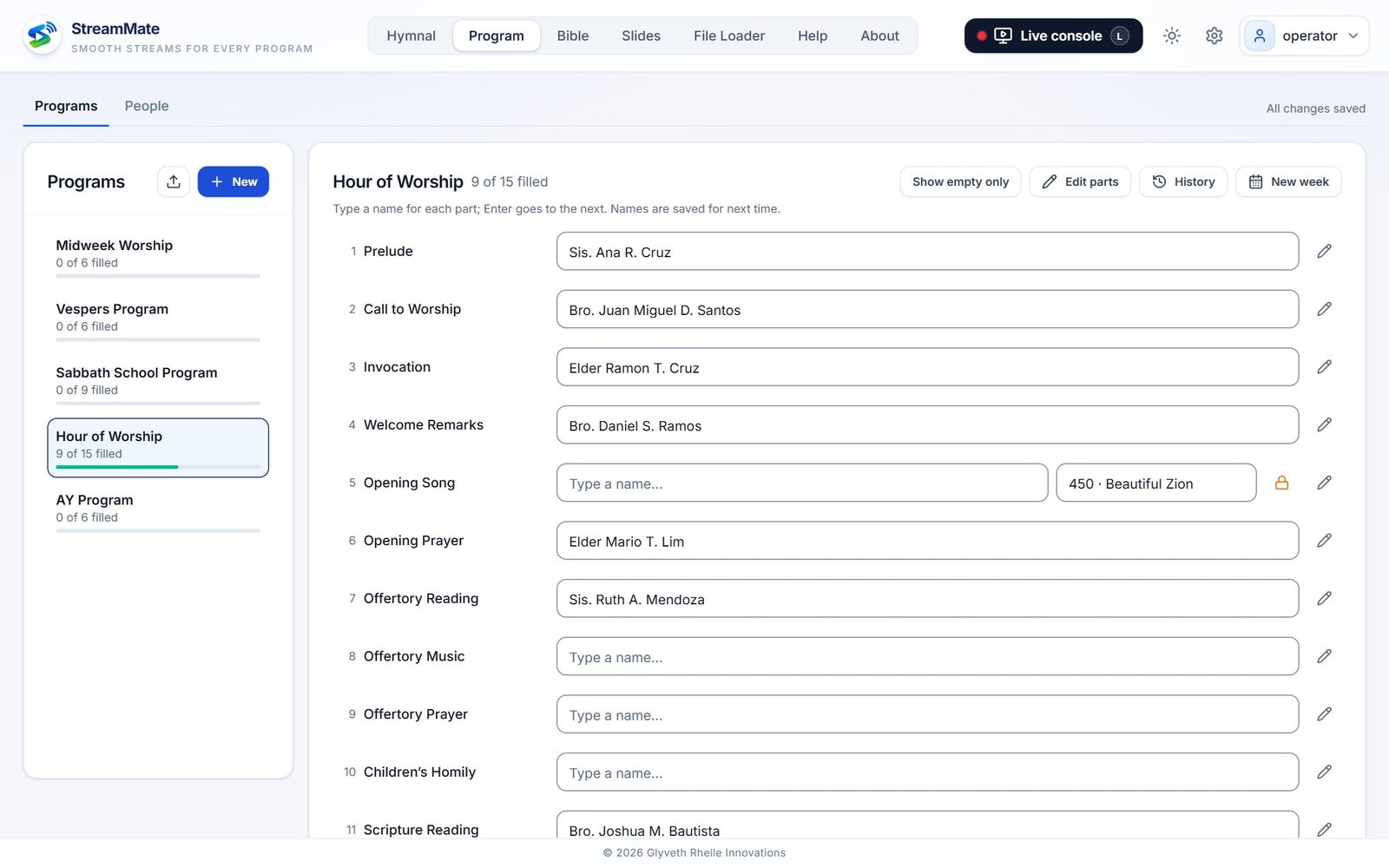
Midweek, Vespers, Sabbath School, Hour of Worship, AY: each program keeps its usual parts, so the weekly job is filling in the names.

  • Name suggestions from past weeks and your church database
  • Insert a part for one week only
  • Lock a hymn to a part so it stays every week
Filling in the names of a program

Names from your church records

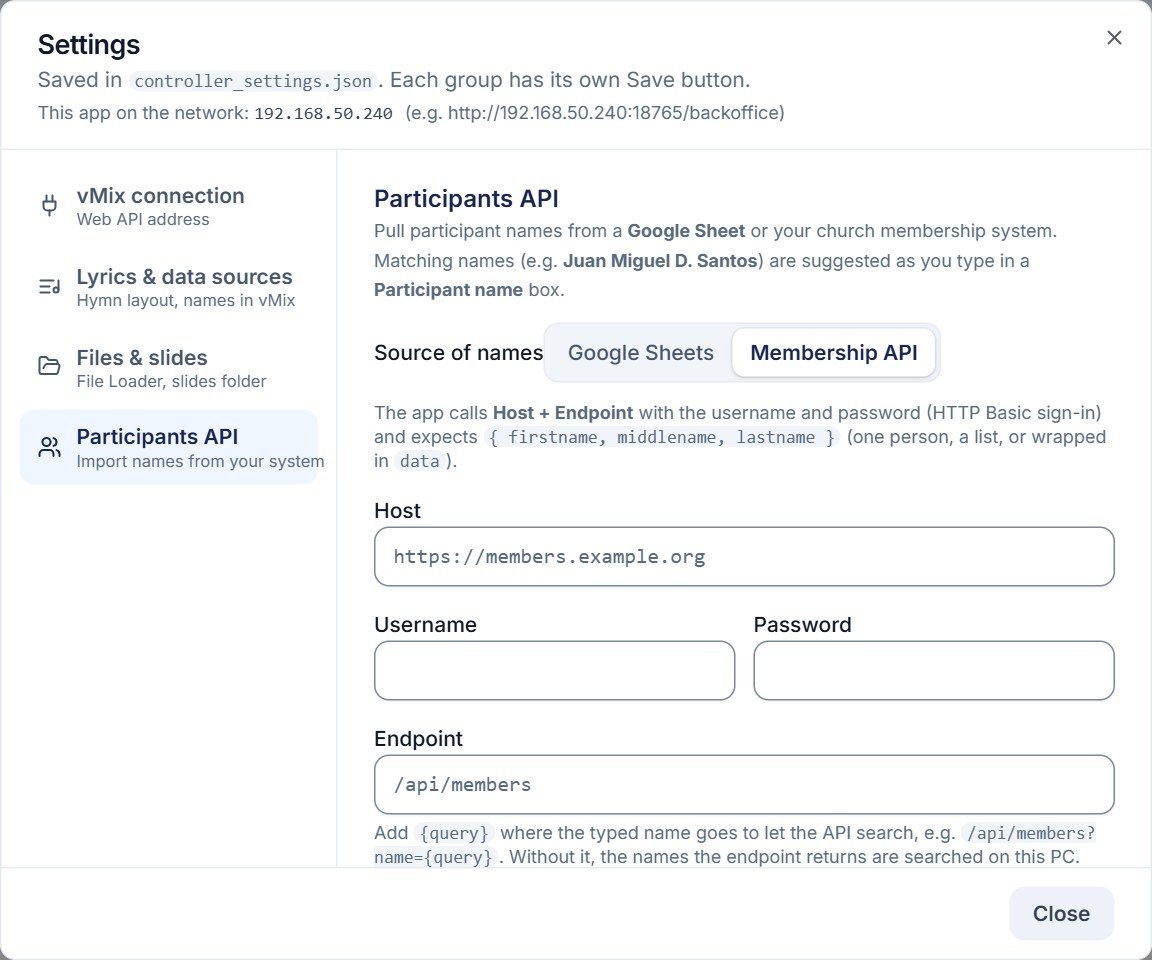
No need to type every name from scratch. Connect your church's member list, and matching names come up as you type in a program, marked Sheet or API.

  • Google Sheets: a sheet with the columns firstname, middlename and lastname, shared with "Anyone with the link" or published to the web
  • Your member system's API: its address, with a username and password, either listing everyone or searching as you type
  • Choose how names are written, and click Test to check the connection
Settings: Participants API (Google Sheets or your member system)

Slides and notes

Load presentations into vMix or show them with PowerPoint on a chosen screen. Skipped slides are passed over everywhere, and the notes screen shows the speaker's notes in large letters.

The Slides page

Get started

Set it up once on the vMix PC. The manual explains every step with pictures.

Install

Run the installer on the vMix PC. StreamMate starts with Windows and sits in the tray.

Connect vMix

Turn on vMix's Web Controller and add StreamMate's data sources for the hymns, parts and Scripture. The Help tab shows the exact addresses.

Prepare the week

Fill in the programs, add any songs and presentations, and pick the projector's screen.

Run the service

Open the Live console and go: next part, next line, the verse. Other PCs and tablets on the network can open StreamMate too.

Manual of operations

Every screen, step by step, with screenshots: installing, programs, the Live console, the projector, slides and notes, setting up vMix, a Sabbath checklist and troubleshooting.

Download the manual (PDF, 6 MB)

What you need

  • A Windows 10 or 11 PC (64-bit), normally the vMix PC
  • vMix with its Web Controller turned on
  • Microsoft PowerPoint, for presentations and notes (optional)
  • Microsoft Edge or Google Chrome, for the projector and notes windows
  • A local network, if other PCs or tablets will open StreamMate

Download StreamMate

The latest version for Windows.

New installations start with a 7-day trial. To keep using StreamMate, send the device code shown in the app to streammate@cpac.edu.ph for an activation code. Updates install from inside StreamMate (About → Updates).

Installing: if Windows shows "Windows protected your PC"

The installer is not signed with a paid certificate yet, so Windows SmartScreen may stop it the first time. It is safe to continue:

  1. Click More info.
  2. Check that it says streammate.exe, then click Run anyway.
  3. Click Yes when Windows asks for administrator permission.

Download StreamMate only from this page or from inside the app (About → Updates).

StreamMate for Android

No PC at the media desk? Run the hymns and the program for vMix from a phone or tablet.

StreamMate for Android app icon

StreamMate for Android

Your steady broadcast companion, on the same network as vMix.

  • All 695 hymns. Tap a line and it is the line vMix shows live
  • Program templates and events: fill in who does each part, reorder, and select, show or hide the part in vMix
  • Import your church's names and designations once from a CSV or Excel file, then search them every week
  • The phone shares the hymns and program parts with vMix as data sources, and keeps running with the screen off
  • vMix control: overlays, main volume, and an alarm if the stream stays muted for more than 10 seconds
  • A web dashboard you can open in any browser on the same network
Download for Android Free 7-day trial

Starts with a free 7-day trial; activate it from inside the app. Like CPAC Radio, it is installed straight from this page: the first time, Android asks you to allow installing apps from your browser. Tap Settings, turn on Allow from this source, go back and tap Install.

Also from CPAC Media: CPAC Radio

Listen to CPAC Online Radio on your Android phone.

CPAC Radio app icon

CPAC Radio

The CPAC Online Radio station, live, wherever you are.

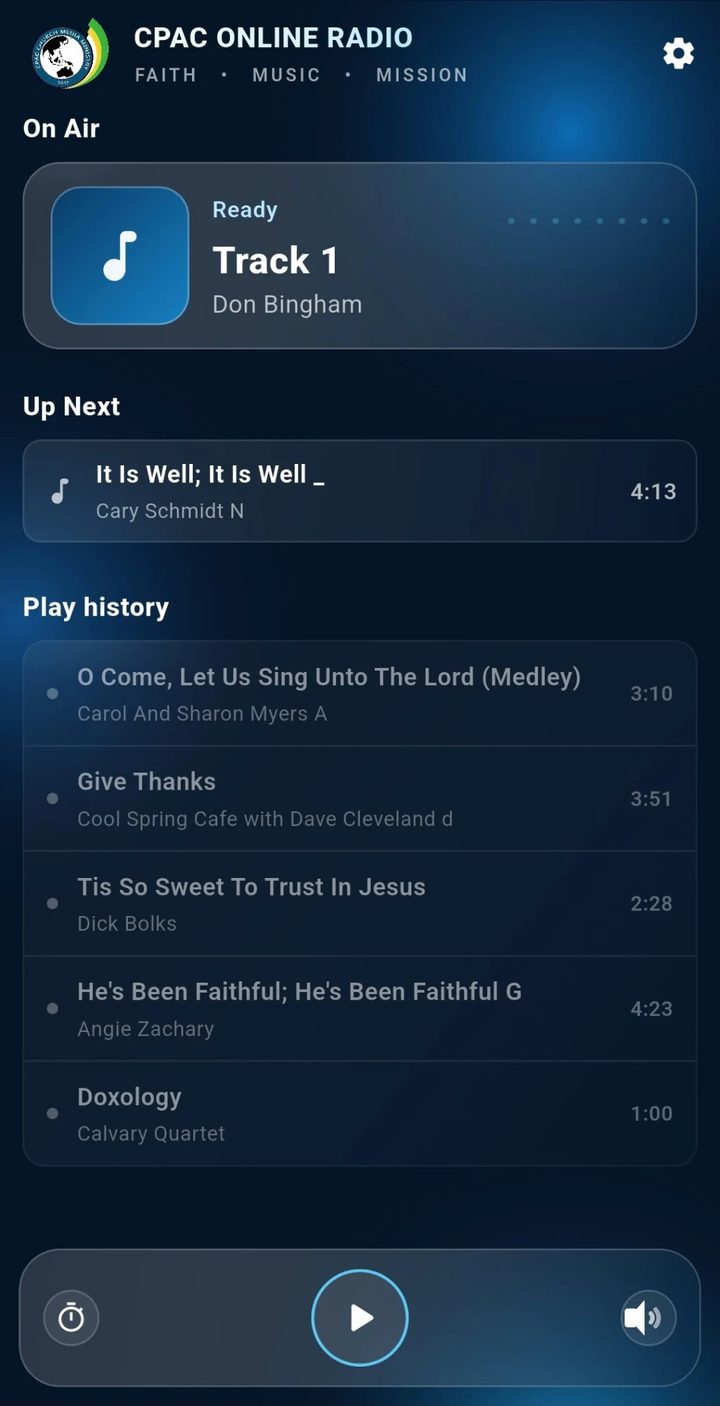
  • See what's on air now, what's up next and what played before
  • Keeps playing in the background, with controls in the notification
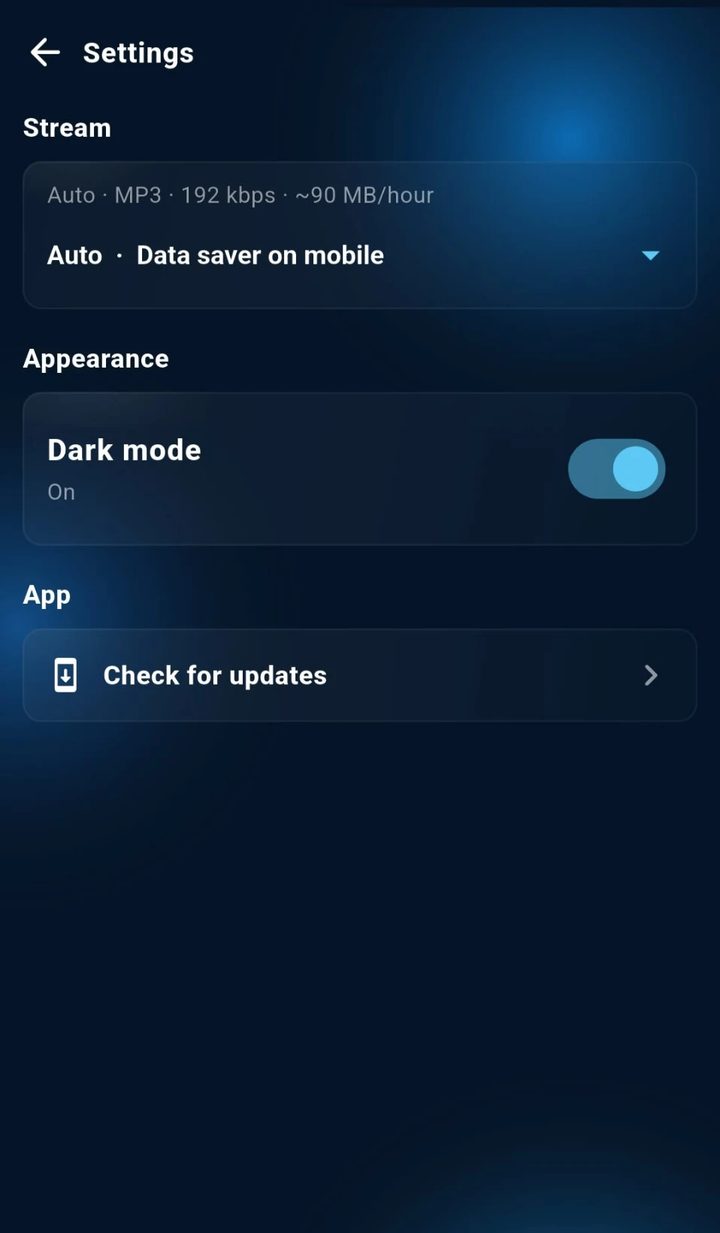
  • Choose the sound quality: High, Normal or Data saver. Auto uses Data saver on mobile data
  • Sleep timer, light and dark mode
  • Tells you when a new version is ready and updates from inside the app
Download for Android Android 5.0 or newer

The app is installed straight from this page, not from the Play Store. The first time, Android asks you to allow installing apps from your browser: tap Settings, turn on Allow from this source, go back and tap Install.

CPAC Radio: On Air, Up Next and Play history
CPAC Radio settings: stream quality, dark mode and updates